

Mac Spotlight Search Tips: Hidden Features to Boost Productivity on macOS
Spotlight Search is the tiny search box on your Mac that acts like a secret command center. You press a shortcut, type a few words, and boom. Files appear. Apps open. Math gets solved. The weather shows up. It feels simple, but it can do much more than most people know.
TLDR: Spotlight is not just for finding files. It can launch apps, do math, convert units, search emails, preview documents, and even help you move faster around macOS. Use Command + Space, type clearly, and learn a few tricks. Your Mac will feel faster, smarter, and a little magical.
Contents
- 1 Start with the magic shortcut
- 2 Open apps without touching the Dock
- 3 Find files even when you forgot the name
- 4 Preview files before opening them
- 5 Do math in Spotlight
- 6 Convert units and currency
- 7 Check weather fast
- 8 Search the web from Spotlight
- 9 Look up definitions
- 10 Open folders quickly
- 11 Find emails and messages
- 12 Use Spotlight as a mini launcher for settings
- 13 Control what Spotlight searches
- 14 Hide private folders from Spotlight
- 15 Use better search words
- 16 Rebuild the Spotlight index if search gets weird
- 17 Use Spotlight with keyboard only
- 18 Try natural phrases
- 19 Make Spotlight part of your daily routine
- 20 Final thoughts
Start with the magic shortcut
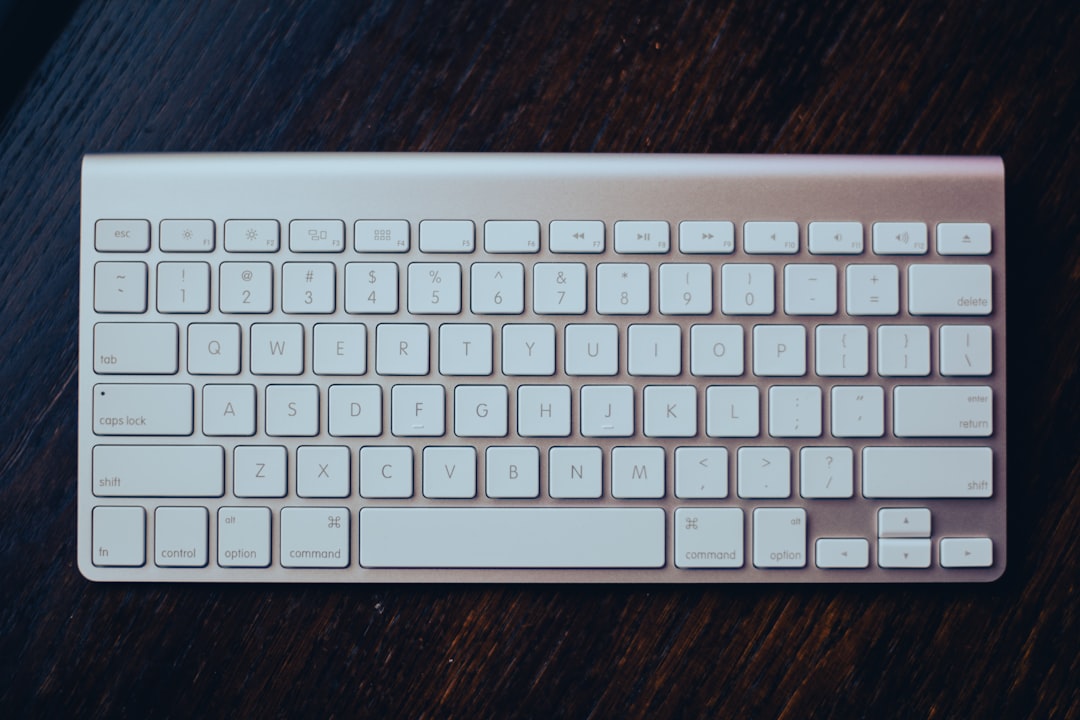
The fastest way to open Spotlight is with Command + Space.
That is it. Two keys. One tiny window. Lots of power.
You can also click the magnifying glass in the menu bar. But shortcuts are faster. And faster is the whole point.
If nothing happens, your shortcut may be changed. Go to:
- System Settings
- Keyboard
- Keyboard Shortcuts
- Spotlight
Then check the shortcut. Set it back to Command + Space if you like.
Think of Spotlight as your Mac’s front door. You do not need to dig through folders. You just knock.
Open apps without touching the Dock
Do you still move your mouse to the Dock? That is fine. But Spotlight is quicker.
Press Command + Space. Type the first few letters of an app. Press Return.
For example:
- Type saf to open Safari.
- Type cal to open Calendar.
- Type not to open Notes.
- Type pho to open Photos.
You do not need the full name. Spotlight learns from you. If you choose the same app often, it moves up the list.
This is great when your Dock is packed with too many icons. No more hunting. No more squinting. Just type and go.
Find files even when you forgot the name
We have all done it. You saved a file. Then it vanished into the digital swamp.
Spotlight can help.
You can search by:
- File name
- File type
- Text inside a document
- Person who sent it
- Date
Try typing simple words you remember. Maybe the file had the word budget, trip, or invoice. Spotlight can often find it, even if the file name is strange.
You can also use file type words.
- kind:pdf budget
- kind:image beach
- kind:document meeting
- kind:presentation sales
This tells Spotlight what kind of thing you want. It is like saying, “Only show me the PDFs, please.” Very polite. Very useful.
Preview files before opening them
Here is a lovely trick.
Search for a file in Spotlight. Then use the arrow keys to select it. A preview may appear on the right side.
You can see a document, image, email, or folder without opening it fully.
Want an even better peek? Press the Space bar. This opens Quick Look.
Quick Look is perfect when you have five files named something like:
- Final report
- Final report new
- Final report real
- Final report actual final
- Final report please use this one
We have all been there. No judgment.
Do math in Spotlight
Spotlight is also a calculator. A surprisingly handy one.
Open Spotlight and type a math problem.
- 45 + 19
- 120 / 4
- 18% of 250
- 99 * 7
The answer appears right away. No Calculator app needed.
This is perfect for quick checks. Splitting a bill. Calculating a discount. Working out if buying the bigger bag of coffee is really a good deal.
It usually is. Coffee is important.
Convert units and currency
Spotlight can convert things too.
Try these:
- 10 miles in km
- 72 f in c
- 5 cups in ml
- 100 usd in eur
- 2 kg in pounds
This is wonderful for recipes, travel, shopping, and random curiosity.
You do not need exact wording. Spotlight is pretty flexible. Type like a human. It can usually understand.
Check weather fast
Want the weather without opening a browser?
Open Spotlight and type:
- weather
- weather london
- weather tokyo
You may see the current temperature, conditions, and forecast.
This is handy before a walk, a commute, or a brave trip to the mailbox.
If you travel often, it is even better. Type the city name and get quick info. No tab chaos required.
Search the web from Spotlight
Spotlight can also send you to the web.
Type a search phrase. If your Mac does not already have a local result, Spotlight can suggest web results.
Examples:
- best pasta recipe
- how to clean a keyboard
- mac keyboard shortcuts
Press Return, and your browser opens with the result.
This is not always faster than typing in the browser. But if your hands are already on the keyboard, it feels smooth.
Look up definitions
Spotlight can be your pocket dictionary.
Type a word. You may see a definition result.
Try words like:
- serendipity
- ephemeral
- meticulous
Select the dictionary result to see more.
This is great when reading, writing, or pretending you knew the word all along. Your secret is safe.
Open folders quickly
Spotlight is not only for apps and files. It can open folders too.
Type folder names like:
- Downloads
- Documents
- Desktop
- Screenshots
Then press Return.
You can also search for custom folders. If you have a folder called Client Work, just type part of the name.
This saves lots of clicks in Finder. It also helps if your folder system is “creative.”
Find emails and messages
Spotlight can search your Mail and Messages too, if indexing is allowed.
Try typing a contact name, subject, or phrase from a message.
For example:
- Alex invoice
- flight confirmation
- dinner Friday
You may see emails, messages, attachments, and related files.
This is a huge time saver. Especially when someone says, “I sent it last week.” Of course they did. Somewhere. In the fog.
Use Spotlight as a mini launcher for settings
You can open many Mac settings from Spotlight.
Type things like:
- Wi Fi
- Bluetooth
- Displays
- Keyboard
- Printers
Spotlight can show the matching setting panel. Press Return to open it.
This is much faster than clicking through System Settings. That place can feel like a maze with nice icons.
Control what Spotlight searches
Maybe Spotlight shows too much. Maybe you do not want it searching emails. Or maybe you want fewer web suggestions.
You can customize it.
Go to:
- System Settings
- Siri & Spotlight
There you can choose categories for Spotlight results. You may see options like apps, documents, folders, mail, messages, contacts, and more.
Turn off what you do not need.
This makes results cleaner. It also makes Spotlight feel more focused. Like a tidy desk, but without actually cleaning your desk.
Hide private folders from Spotlight
You can stop Spotlight from searching certain folders.
This is useful for private files, old archives, or giant folders that clutter results.
Go to:
- System Settings
- Siri & Spotlight
- Spotlight Privacy
Add folders you want to exclude.
Spotlight will ignore them. That means they will not appear in normal Spotlight searches.
This is not a full security system. Do not treat it like a vault. But it is helpful for reducing noise.
Use better search words
Spotlight works best when you give it useful clues.
Instead of typing one vague word, try two or three words.
For example:
- Use tax 2024 pdf instead of tax.
- Use Sarah contract instead of contract.
- Use trip paris booking instead of trip.
Small details make a big difference.
If you remember the file type, include it. If you remember who sent it, include their name. If you remember one weird word inside the file, use that too.
Spotlight is smart. But it is not a mind reader. Yet. Probably for the best.
Rebuild the Spotlight index if search gets weird
Sometimes Spotlight acts strange. It may miss files. Results may look old. Or search may feel slow.
This can happen if the search index gets confused.
You can make Spotlight rebuild it.
The simple way is to add your drive to Spotlight Privacy, then remove it again.
- Open System Settings.
- Go to Siri & Spotlight.
- Open Spotlight Privacy.
- Add your main drive or a folder.
- Wait a moment.
- Remove it from the privacy list.
Your Mac should start indexing again. This may take time. Your fans may get excited. Let it finish.

Use Spotlight with keyboard only
Here is a fast keyboard flow.
- Press Command + Space.
- Type your search.
- Use Up and Down arrows.
- Press Return to open.
- Press Escape to close.
This keeps your hands on the keyboard. It feels small. But small speed boosts add up.
If you open apps, files, and settings all day, this can save real time. It also makes you look like a Mac wizard. A calm wizard. With snacks.
Try natural phrases
You do not always need commands.
Try typing normal phrases like:
- photos from last week
- emails from Jordan
- documents from yesterday
- messages about lunch
Results depend on your macOS version, settings, and apps. But it is worth trying.
The more you test, the more you learn what your Mac understands.
Make Spotlight part of your daily routine
The best productivity tools are the ones you actually use. Spotlight is already on your Mac. It is free. It is fast. It does not ask you to create an account or watch a tutorial for 47 minutes.
Start with one habit.
- Use Spotlight to open apps.
- Use it to find downloads.
- Use it for quick math.
- Use it to open settings.
Then add more tricks over time.
Before long, you may stop digging through Finder. You may stop opening the Calculator app. You may even stop saying, “Where did I put that file?” Well, maybe not completely. We are only human.
Final thoughts
Spotlight Search is one of the easiest ways to make macOS feel faster. It is simple on the surface, but packed with hidden powers. It can launch apps, find files, solve math, convert units, preview documents, search messages, and open settings.
The best tip is also the simplest: use Command + Space many times a day. Treat it like your Mac’s magic doorway. Type what you need. Let Spotlight do the digging.
Your mouse can rest. Your folders can stay messy. Your productivity can still level up.
