


Bazoocam Not Working? Camera Issues and Quick Fixes
For many users, Bazoocam offers a quick and spontaneous way to connect with strangers through live video chat. But when the camera suddenly stops working, the experience quickly turns frustrating. Whether the screen is black, the browser cannot detect the camera, or permissions keep getting denied, these issues are surprisingly common. The good news is that most Bazoocam camera problems can be fixed in just a few minutes with the right troubleshooting steps.
TLDR: If Bazoocam is not working, the issue is usually related to browser permissions, outdated software, blocked camera access, or hardware conflicts. Checking camera permissions, updating the browser, restarting the device, and ensuring no other app is using the webcam can resolve most problems. Adjusting security settings and testing the camera on another platform can also help pinpoint the root cause. In rare cases, driver updates or hardware replacements may be necessary.
Contents
- 1 Why Bazoocam Camera Issues Happen
- 2 First Step: Check Camera Permissions
- 3 Make Sure No Other App Is Using the Camera
- 4 Update the Browser
- 5 Check System Privacy Settings
- 6 Test the Webcam Outside of Bazoocam
- 7 Clear Cache and Cookies
- 8 Update or Reinstall Webcam Drivers
- 9 Disable Antivirus or Firewall Temporarily
- 10 Check Internet Connection Stability
- 11 Hardware Troubleshooting
- 12 Mobile Device Troubleshooting
- 13 When the Problem Is on Bazoocam’s Side
- 14 Preventing Future Camera Problems
- 15 FAQ: Bazoocam Camera Issues
Why Bazoocam Camera Issues Happen
Camera problems on Bazoocam often stem from basic technical conflicts rather than serious malfunctions. Because the platform operates directly in a web browser, it depends heavily on camera permissions, browser compatibility, and stable internet connections.
Here are some of the most common reasons users encounter camera issues:
- Browser permission restrictions
- Outdated browser versions
- Another application using the webcam
- Incorrect privacy or antivirus settings
- Faulty webcam drivers
- Physical camera damage
Understanding which category the issue falls into makes troubleshooting much faster and more effective.
First Step: Check Camera Permissions
One of the most frequent causes of camera failure is denied browser permissions. When Bazoocam requests access to a camera for the first time, users must click “Allow.” If “Block” is selected accidentally, the site cannot access the webcam.
To fix this:
- Click the lock icon in the browser’s address bar.
- Find the Camera option in the list.
- Change it to Allow.
- Refresh the page.
In some cases, clearing site-specific permissions or resetting browser settings restores proper functionality.
Make Sure No Other App Is Using the Camera
Webcams typically cannot be accessed by multiple applications at the same time. If Zoom, Skype, Microsoft Teams, or another program is running in the background, Bazoocam may display a black screen.
Users can resolve this by:
- Closing all video conferencing apps
- Checking the system tray for background applications
- Restarting the computer to clear camera locks
A simple reboot often solves hidden conflicts that are not immediately visible.
Update the Browser
An outdated browser may not fully support Bazoocam’s video streaming requirements. Chrome, Firefox, Edge, and Safari all regularly release updates that improve video compatibility and security.
To update:
- Open browser settings
- Navigate to About
- Install any available updates
- Restart the browser
Switching browsers entirely can also help determine whether the issue is browser-specific.
Check System Privacy Settings
Modern operating systems include built-in privacy protections that can override browser permissions. Even if access is allowed within the browser, the operating system itself may block the webcam.
On Windows:
- Go to Settings
- Select Privacy & Security
- Click Camera
- Ensure camera access is turned on for browsers
On macOS:
- Open System Settings
- Navigate to Privacy & Security
- Select Camera
- Confirm the browser is enabled
Without this system-wide permission, Bazoocam will never detect the camera correctly.
Test the Webcam Outside of Bazoocam
Before assuming the issue is platform-specific, users should verify whether the camera works elsewhere. Testing on:
- Zoom
- Google Meet
- The built-in Camera app
If the webcam fails across all platforms, the problem likely involves drivers or hardware.
If it works elsewhere but not on Bazoocam, then the issue is likely linked to browser configuration or cache problems.
Clear Cache and Cookies
Corrupted browser cache files can interfere with camera initialization. Clearing cache often solves unexplained errors.
Steps to clear cache (general process):
- Open browser settings
- Select Privacy
- Click Clear browsing data
- Choose cached files and cookies
- Restart the browser
After clearing data, users may need to re-enable camera permissions.
Update or Reinstall Webcam Drivers
If the camera still fails, outdated or corrupted drivers might be responsible. Drivers act as translators between hardware and software. Without proper drivers, the browser cannot communicate with the webcam.
On Windows:
- Open Device Manager
- Expand Cameras
- Right-click the webcam device
- Select Update driver
If updating does not help, uninstalling the driver and restarting the computer usually forces automatic reinstallation.
Disable Antivirus or Firewall Temporarily
Some antivirus programs block webcam access as a protective feature. While this improves privacy, it can interfere with legitimate use.
Users can:
- Check antivirus camera protection settings
- Add the browser to the trusted app list
- Temporarily disable webcam protection to test functionality
It is important to re-enable security features after testing.
Check Internet Connection Stability
Although camera detection and internet connectivity are separate issues, unstable connections can cause video feeds to freeze or fail. Users experiencing intermittent camera performance should:
- Restart their router
- Switch from Wi-Fi to a wired connection
- Close bandwidth-heavy applications
A stable upload speed is particularly important for live video chat platforms like Bazoocam.
Hardware Troubleshooting
If all software fixes fail, physical inspection may be necessary.
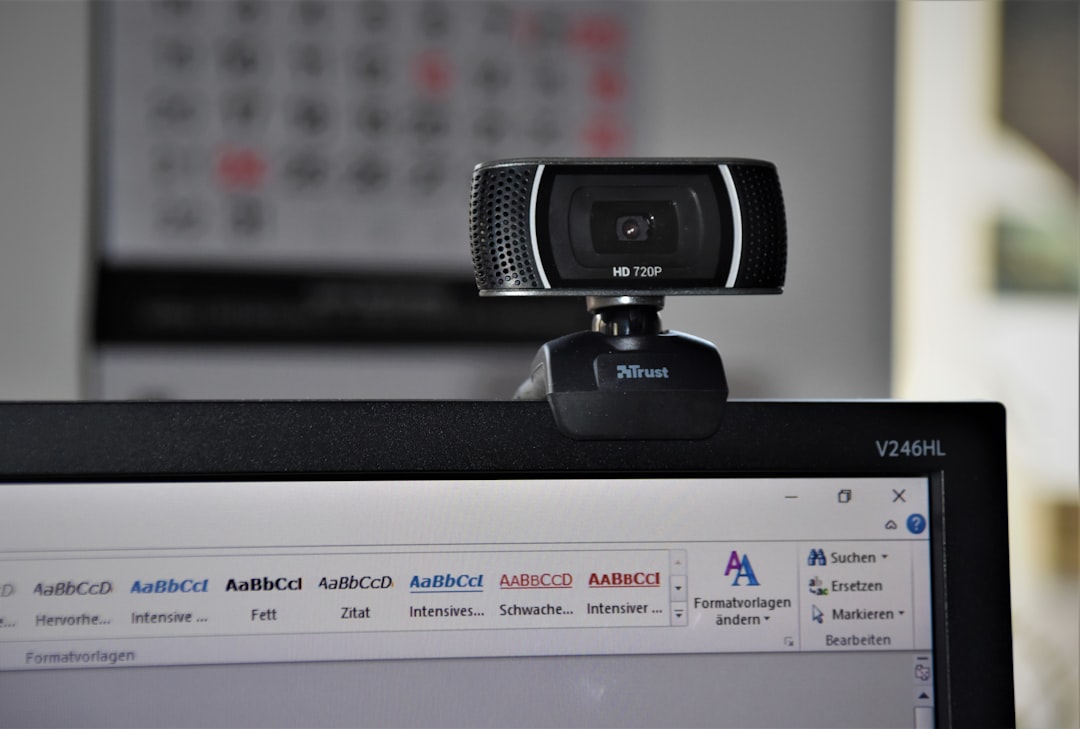
Users should check:
- Whether the webcam is properly plugged in
- If USB ports are functional
- Whether the device appears in system hardware settings
- If the camera’s indicator light turns on
Testing the webcam on another computer can quickly determine whether the device itself is defective.
Mobile Device Troubleshooting
For users accessing Bazoocam on smartphones or tablets, camera issues often relate to app permissions or browser compatibility. Mobile devices require explicit camera authorization.
On mobile:
- Open device Settings
- Tap Apps or Permissions
- Select the active browser
- Enable camera access
Clearing the browser cache or switching to another supported browser can also resolve mobile-specific glitches.
When the Problem Is on Bazoocam’s Side
Occasionally, the issue may not be user-related at all. Server outages, platform maintenance, or temporary technical glitches can disrupt video functionality.
Indicators of platform-side problems include:
- Multiple users reporting issues online
- Camera working on other sites but not Bazoocam
- Error messages related to server connection
In such cases, waiting and trying again later is often the only solution.
Preventing Future Camera Problems
To avoid repeating issues, users can adopt preventative habits:
- Keep their browser up to date
- Regularly update operating systems
- Avoid installing suspicious browser extensions
- Perform occasional driver checks
- Maintain stable internet connectivity
Most camera issues are preventable with consistent maintenance and awareness of digital privacy settings.
FAQ: Bazoocam Camera Issues
1. Why does Bazoocam show a black screen?
A black screen usually indicates denied camera permissions, another app using the webcam, or outdated browser software. Checking permissions and restarting the device often resolves the issue.
2. How do users allow camera access again after blocking it?
They can click the lock icon in the browser address bar, find camera permissions, and switch the setting to “Allow.” Refreshing the page applies the change.
3. Does Bazoocam work on mobile devices?
Yes, but camera permissions must be enabled in both browser and device settings. Some older mobile browsers may not fully support live video chat features.
4. Why does the camera work on Zoom but not Bazoocam?
This suggests a browser-specific issue. Clearing cache, updating the browser, or switching to a different browser can help.
5. Can antivirus software block Bazoocam?
Yes. Some antivirus programs include webcam protection features that prevent browser access. Adjusting security settings can fix this.
6. Should users replace their webcam if it stops working?
Only after testing drivers, permissions, and hardware connections. If the camera fails across all devices and apps, hardware replacement may be necessary.
7. What is the fastest fix for most Bazoocam camera problems?
Restarting the browser or device and checking camera permissions solves the majority of cases within minutes.
With a systematic approach to troubleshooting, most Bazoocam camera problems can be resolved quickly without requiring technical expertise. By checking permissions, updating software, and testing hardware step by step, users can get back to seamless video chatting with minimal downtime.
