

How to Take Screenshots on Android: Samsung, Pixel, Xiaomi, and Other Devices
Taking a screenshot on Android should not feel like cracking a secret code. Yet every phone brand has its own little trick. Samsung does one thing. Pixel does another. Xiaomi adds extra spice. Do not worry. This guide makes it simple, quick, and a little fun.
TLDR: On most Android phones, press Power + Volume Down at the same time to take a screenshot. On Samsung phones, you can also use palm swipe, the S Pen, or voice commands. On Pixel phones, you can use the buttons or the app switcher. Xiaomi and many other brands also offer gestures, quick settings, and scrolling screenshots.
Contents
- 1 First, the classic Android screenshot trick
- 2 Where do screenshots go?
- 3 How to take screenshots on Samsung Galaxy phones
- 4 How to take screenshots on Google Pixel phones
- 5 How to take screenshots on Xiaomi, Redmi, and Poco phones
- 6 How to take screenshots on OnePlus phones
- 7 How to take screenshots on Motorola phones
- 8 How to take screenshots on Oppo, Realme, and Vivo phones
- 9 How to take a scrolling screenshot
- 10 How to edit a screenshot fast
- 11 What if screenshots do not work?
- 12 Can you take screenshots without buttons?
- 13 Quick screenshot cheat sheet
- 14 Final tips for better screenshots
First, the classic Android screenshot trick
Let us start with the big one. This works on most Android phones.
- Open the screen you want to capture.
- Press the Power button and Volume Down button at the same time.
- Hold them for about one second.
- You will see a flash, a small preview, or hear a click.
That is it. The screen is now saved. Easy. Like catching a digital butterfly.
If it does not work, try again. The timing matters. Press both buttons together. Not one after the other. Together, like best friends jumping into a pool.
Where do screenshots go?
Your screenshots usually go to the Photos app or the Gallery app.
Look for a folder called Screenshots. On many phones, you can find it here:
- Google Photos: Open Photos, tap Collections or Library, then open Screenshots.
- Samsung Gallery: Open Gallery, then look for the Screenshots album.
- Xiaomi Gallery: Open Gallery, then check Albums and tap Screenshots.
You can share, edit, crop, draw, or delete them from there. You are the boss of the screenshot kingdom.
How to take screenshots on Samsung Galaxy phones
Samsung phones give you many ways to take screenshots. Some are simple. Some feel like magic tricks.
This is the fastest method for most Samsung Galaxy phones.
- Go to the screen you want.
- Press Power and Volume Down together.
- Let go quickly.
Do not hold too long. If you hold the buttons, your phone may open the power menu. A quick press is best. Think of it like a tiny button high five.
Method 2: Use palm swipe
This one feels very fancy. You swipe the side of your hand across the screen.
To turn it on:
- Open Settings.
- Tap Advanced features.
- Tap Motions and gestures.
- Turn on Palm swipe to capture.
Now place the side of your hand on the edge of the screen. Swipe across. The phone takes a screenshot. Congratulations. You are now a phone wizard.
Method 3: Use the S Pen
If you have a Galaxy Note or Galaxy Ultra with an S Pen, you get more fun options.
- Pull out the S Pen.
- Tap Air Command.
- Choose Screen write.
Your phone will take a screenshot. Then you can write on it. Circle things. Add arrows. Draw a tiny hat on your friend. Use this power wisely.
Method 4: Use Bixby or Google Assistant
You can also use your voice. Say:
“Hey Google, take a screenshot.”
Or, if you use Bixby, say:
“Hi Bixby, take a screenshot.”
This is great when your hands are busy. Maybe you are cooking. Maybe you are holding a sandwich. The screenshot must still happen.
How to take screenshots on Google Pixel phones
Pixel phones are clean and simple. Google likes things neat. So screenshots are easy.
Method 1: Use Power + Volume Down
Yes, the classic method works here too.
- Open the screen.
- Press Power and Volume Down at the same time.
- Release quickly.
You will see a preview near the bottom. You can tap it to edit or share.
Method 2: Use the recent apps screen
This is a very Pixel-style trick.
- Swipe up from the bottom of the screen and hold.
- You will see your recent apps.
- Tap Screenshot at the bottom.
This captures the app you are viewing. It is handy if the buttons feel awkward.
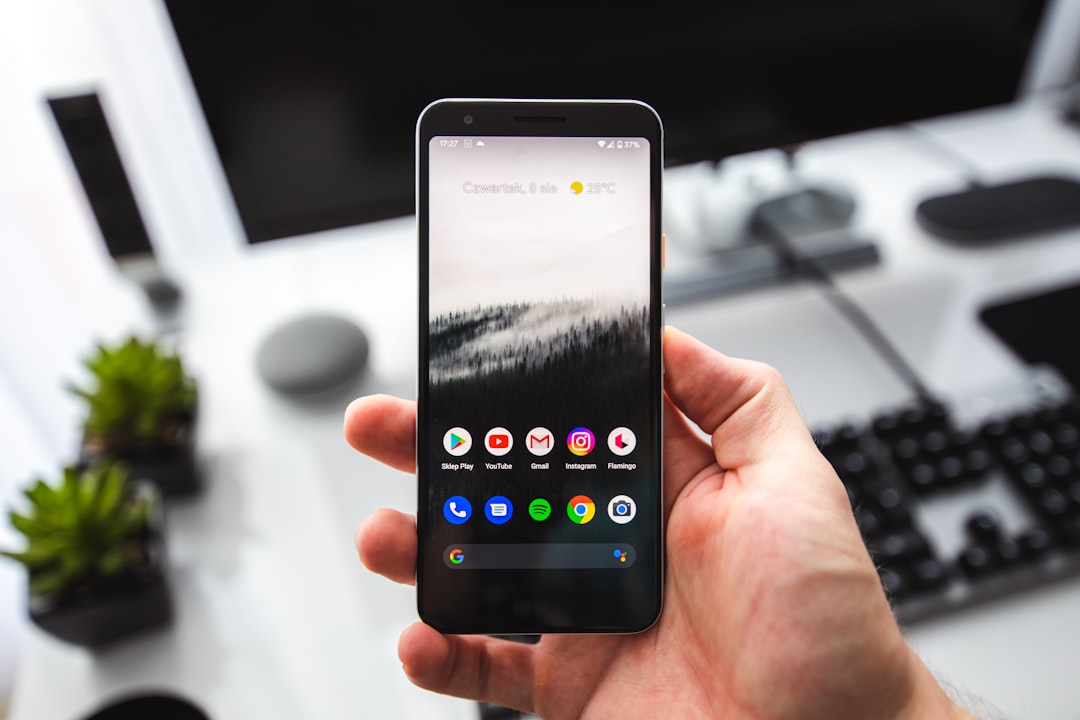
Method 3: Use Google Assistant
You can also say:
“Hey Google, take a screenshot.”
Google Assistant will do the job. It may ask for permission the first time. Say yes if you want this feature to work.
How to take screenshots on Xiaomi, Redmi, and Poco phones
Xiaomi phones, including Redmi and Poco, are full of features. Sometimes too many. But screenshots are simple once you know the moves.
Start with the reliable method.
- Open the screen.
- Press Power and Volume Down together.
- Wait for the screenshot animation.
Your screenshot will appear as a small preview. You can tap it to edit, share, or scroll.
Method 2: Use three fingers
This is one of the best Xiaomi tricks.
- Place three fingers on the screen.
- Swipe down.
- Your phone takes a screenshot.
If it does not work, turn it on:
- Open Settings.
- Tap Additional settings.
- Tap Gesture shortcuts.
- Tap Take a screenshot.
- Choose Slide 3 fingers down.
Now you can screenshot like a smooth ninja.
Method 3: Use the quick settings tile
Swipe down from the top of the screen. Look for a button called Screenshot. Tap it. Boom. Captured.
If you do not see it, swipe again to expand the quick settings. You may need to edit the tiles and add it.
How to take screenshots on OnePlus phones
OnePlus phones are also friendly with screenshots.
- Press Power + Volume Down together.
- Or swipe down with three fingers.
- Or use the Screenshot button from quick settings.
To turn on the three-finger gesture, go to Settings, then Additional settings or Buttons and gestures. The names may change a little by model.
How to take screenshots on Motorola phones
Motorola keeps things simple. Use Power + Volume Down.
Some Motorola phones also support a three-finger touch gesture. You touch and hold the screen with three fingers. The phone takes a screenshot.
To check, open Moto app, then look for Gestures. Turn on Three finger screenshot if you see it.
How to take screenshots on Oppo, Realme, and Vivo phones
These brands often offer the same main options.
- Use Power + Volume Down.
- Swipe down with three fingers.
- Use the Screenshot tile in quick settings.
To set up gestures, check Settings. Look for words like Convenience tools, Gestures, Shortcuts, or Smart motion.
The menu names can be different. Phone brands love moving things around. It keeps life spicy.
How to take a scrolling screenshot
A normal screenshot captures only what you see. A scrolling screenshot captures more. It is perfect for long chats, web pages, recipes, receipts, and giant drama-filled comment threads.
Here is how it usually works:
- Take a normal screenshot.
- Look for a button called Scroll, Capture more, Scroll capture, or Long screenshot.
- Tap it.
- Stop when you have captured enough.
- Save it.
On Samsung, it is often called Scroll capture. On Pixel, it is usually Capture more. On Xiaomi, it may appear as Scroll under the preview.
How to edit a screenshot fast
After you take a screenshot, a small preview often appears. Tap it quickly.
You can usually:
- Crop the image.
- Draw on it.
- Add text.
- Highlight something important.
- Share it with someone.
- Delete it if you captured nonsense.
Cropping is very useful. It removes private details. It also makes the screenshot cleaner. Nobody needs to see your 47 open tabs. Unless that is part of your brand.
What if screenshots do not work?
Sometimes Android says no. Rude, but it happens.
Try these fixes:
- Press the buttons at the same time.
- Do not hold the buttons too long.
- Restart your phone.
- Update your Android system.
- Check if gestures are turned on.
- Try quick settings instead.
Some apps block screenshots. Banking apps, streaming apps, and private apps may do this. You may see a black screen or an error message. That is not your fault. The app is protecting content.
Yes. Buttons are not the only way.
Try these options:
- Voice assistant: Say, “Hey Google, take a screenshot.”
- Gesture: Use palm swipe or three-finger swipe.
- Quick settings: Tap the screenshot tile.
- Accessibility menu: Add a screenshot shortcut to your screen.
To use the Accessibility menu, go to Settings, then Accessibility. Look for Accessibility Menu. Turn it on. You may get a floating button with useful shortcuts, including screenshots.
Quick screenshot cheat sheet
| Phone | Easy method | Extra method |
|---|---|---|
| Samsung | Power + Volume Down | Palm swipe, S Pen, voice |
| Google Pixel | Power + Volume Down | Recent apps screenshot, Assistant |
| Xiaomi, Redmi, Poco | Power + Volume Down | Three-finger swipe, quick settings |
| OnePlus | Power + Volume Down | Three-finger swipe |
| Motorola | Power + Volume Down | Three-finger touch on some models |
Final tips for better screenshots
Before you take a screenshot, pause for one second. Check the screen. Is there private info? A phone number? An address? A weird search? Crop it out.
Use screenshots to save useful things. Tickets. Directions. Receipts. Funny messages. App settings. Game scores. Memes that are too powerful to lose.
Also, clean your screenshot folder sometimes. Screenshots pile up fast. One day you take five. Then suddenly you have 2,000. Your phone becomes a tiny museum of forgotten moments.
Now you know the main Android screenshot tricks. Use buttons. Use gestures. Use your voice. Use scrolling capture when the page is long. No matter if you have a Samsung, Pixel, Xiaomi, Motorola, OnePlus, Oppo, Realme, Vivo, or another Android phone, you are ready. Go forth and capture the screen like a champion.
