


What Is a Bridge Connection in Networking? How Linux Bridge, VirtualBox, and Windows Network Bridging Work
A bridge connection joins two network segments so they behave like one Layer 2 network. It forwards Ethernet frames by MAC address, much like a basic switch, instead of routing traffic by IP address. The Linux kernel describes its bridge driver as a way to connect multiple network devices into one bridge interface [source: Linux kernel docs].
TLDR: A network bridge makes separate adapters or virtual ports act as if they sit on the same local network. For example, a VirtualBox VM using bridged networking can get its own IP address from the same router as the host, such as 192.168.1.42 while the host uses 192.168.1.10. In small labs, bridging often cuts setup time by 30–50% because you avoid extra NAT rules and port forwarding. The tradeoff is that bridged devices are more exposed to the local network.
Contents
What a Bridge Connection Actually Does
A bridge works below IP. That matters. Routers care about IP networks. Bridges care about MAC addresses.
When a frame arrives, the bridge checks the source MAC address and remembers which port it came from. Then it decides where to send the frame next. If it knows the destination MAC address, it forwards the frame only to the right port. If it does not know, it floods the frame to other ports.
This is why a bridge feels like a switch. In many cases, it is a software switch.
- Bridge: connects devices at Layer 2.
- Router: connects IP networks at Layer 3.
- NAT: hides one or more devices behind another IP address.

Linux Bridge: A Software Switch Inside Linux
A Linux bridge is common on servers, hypervisors, firewalls, and lab machines. It creates a virtual bridge interface, often named br0. Physical ports, virtual machine interfaces, containers, or tap devices can be attached to it.
A simple setup may look like this:
- eth0 connects to your physical LAN.
- br0 becomes the bridge interface.
- The IP address moves from eth0 to br0.
- VM interfaces attach to br0.
The result is clean. The host and its virtual machines appear on the same network. Each one can get an IP address from the same DHCP server. No weird port forwarding. No hidden private subnet unless you choose one.
The catch is that mistakes are easy. If you leave the IP address on the physical adapter and also assign one to the bridge, you can create confusing failures. It may work for five minutes, then DNS fails, then SSH hangs. Expect to waste time on small config details if you rush it.
VirtualBox Bridged Adapter Mode
VirtualBox has several network modes. The most used are NAT, Host-only, and Bridged Adapter. Bridged mode is the one that makes a VM act like a normal machine on the same LAN as the host.
With bridged mode, VirtualBox connects the VM’s virtual network card to a real network adapter on the host. That might be Ethernet or Wi-Fi. The VM can then request an IP address from the router. Other devices on the LAN can usually reach it directly.
This is useful for:
- Testing a web server inside a VM.
- Running a lab domain controller.
- Scanning from a security VM on an approved test network.
- Building software that must be reached by phones, tablets, or other PCs.
Oracle describes bridged networking as a mode where VirtualBox uses a device driver on the host to send traffic through the selected physical interface [source: Oracle VirtualBox Manual].
Honestly, it feels like VirtualBox makes this look simpler than it is. Wi-Fi bridging can be picky because wireless adapters do not always behave like wired Ethernet ports. On some systems, the VM gets an IP in three seconds. On others, DHCP sits there for 20 seconds and gives up. Wired adapters are usually less painful.
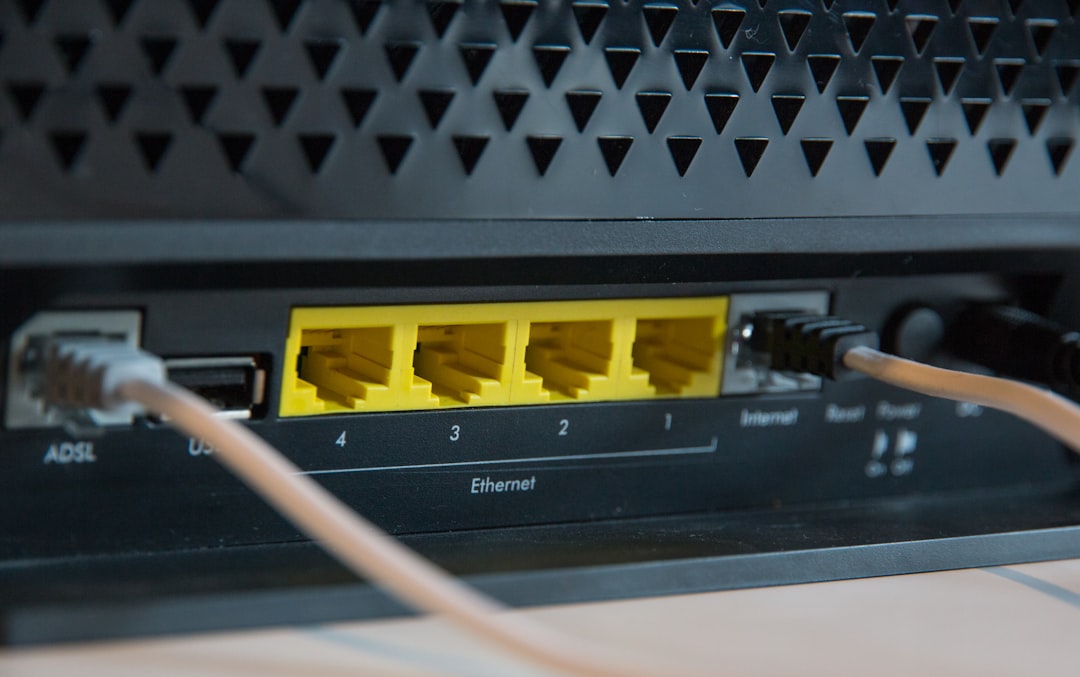
Windows Network Bridging
Windows also supports network bridging. You can select two adapters, such as Wi-Fi and Ethernet, then create a bridge between them. Windows creates a new Network Bridge adapter. The bridged adapters become part of that combined connection.
A common case is simple. A laptop is connected to Wi-Fi. A device with only Ethernet needs network access. You plug the device into the laptop’s Ethernet port and bridge Wi-Fi with Ethernet. The Ethernet device may then reach the same network through the laptop.
That sounds handy, and it is. But it is not magic. The laptop must stay on. Sleep mode breaks the path. Some enterprise Wi-Fi networks block this behavior. Security tools may also disable it. Microsoft documents the Network Bridge feature for combining adapters in Windows [source: Microsoft].
Bridge vs NAT: Which One Should You Use?
Use bridging when the device or VM should be a real member of the local network. It gets its own IP address. Other machines can initiate connections to it. This is best for servers, labs, and testing client access.
Use NAT when the device only needs outbound access. NAT is safer for casual use because the VM is hidden behind the host. It is also easier on public Wi-Fi, hotels, and office networks that limit extra devices.
| Mode | Best For | Main Risk |
|---|---|---|
| Bridge | Servers, labs, direct LAN access | More exposure on the local network |
| NAT | Browsing, updates, simple outbound traffic | Inbound access needs extra setup |

Security and Reliability Notes
A bridge can spread broadcast traffic. It can also extend mistakes. A loop can cause serious network trouble unless loop prevention is enabled. In managed environments, features such as STP, VLAN filtering, and port security matter.
For home labs, keep it simple. Bridge only what you need. Avoid bridging corporate VPN adapters unless policy allows it. Do not bridge random public Wi-Fi to other devices. And if a bridged VM is running old software, treat it like a real exposed machine, because that is what it is.
The practical rule is clear: choose a bridge when you want direct LAN presence. Choose NAT when you want basic internet access with fewer surprises.
