


Dropbox Website Is Blank? Here’s How to Fix It
You open Dropbox. You’re ready to grab a file. Maybe it’s for work. Maybe it’s your vacation photos. But instead of your folders, you see… nothing. A big blank page. No files. No buttons. Just white space staring back at you.
Don’t panic. This is a common problem. And the good news? It’s usually easy to fix.
TLDR: If the Dropbox website is blank, the problem is often your browser, extensions, cache, or internet connection. Try refreshing the page, clearing your cache, disabling extensions, or switching browsers. Also check Dropbox’s server status. In most cases, you’ll be back to your files in minutes.
Contents
- 1 Why Is Dropbox Showing a Blank Page?
- 2 1. Refresh the Page (Yes, Really)
- 3 2. Check Your Internet Connection
- 4 3. Clear Your Browser Cache
- 5 4. Disable Browser Extensions
- 6 5. Try a Different Browser
- 7 6. Update Your Browser
- 8 7. Check If Dropbox Is Down
- 9 8. Disable Firewall or Antivirus Temporarily
- 10 9. Check JavaScript Is Enabled
- 11 10. Log Out and Log Back In
- 12 11. Flush DNS (Advanced but Effective)
- 13 12. Try the Dropbox Desktop App
- 14 When Should You Contact Dropbox Support?
- 15 How to Prevent This in the Future
- 16 Final Thoughts
Why Is Dropbox Showing a Blank Page?
When a website loads, many small things happen in the background. Scripts run. Data loads. Your browser renders the page.
If even one piece fails, you might see a blank screen.
Here are the most common causes:
- Browser cache problems
- Outdated browser
- Problematic browser extension
- Slow or unstable internet
- Dropbox server outage
- Firewall or antivirus interference
Now let’s fix it step by step.
1. Refresh the Page (Yes, Really)
It sounds too simple. But it works more often than you think.
Press Ctrl + R on Windows. Or Cmd + R on Mac.
Still blank?
Try a hard refresh:
- Windows: Ctrl + Shift + R
- Mac: Cmd + Shift + R
This forces your browser to reload everything from scratch.
Sometimes that’s all it takes.
2. Check Your Internet Connection
Dropbox needs a stable connection.
If your Wi-Fi is slow or dropping, the page may fail to load fully.
Try this:
- Open another website
- Run a quick speed test
- Restart your router
If other sites are slow too, it’s likely your connection.
If everything else works fine, move to the next step.
3. Clear Your Browser Cache
Your browser stores temporary files. This is called cache.
Sometimes those files get corrupted. When that happens, websites break.
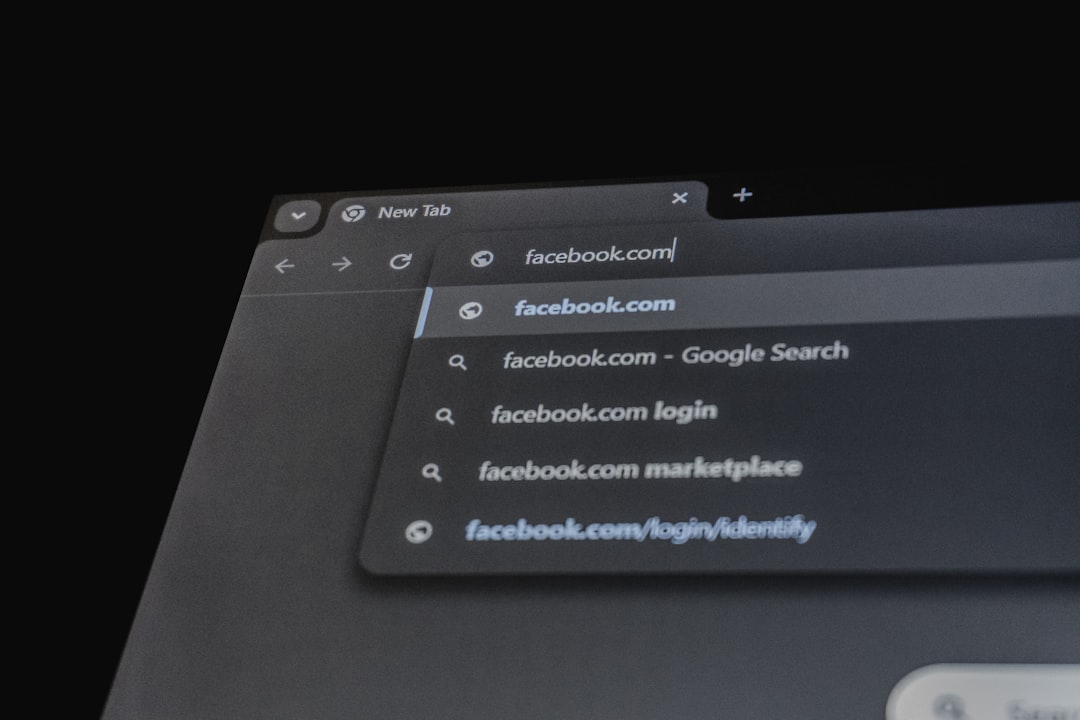
How to Clear Cache (Quick Guide)
In Chrome:
- Click the three dots (top right)
- Go to Settings
- Click Privacy and security
- Select Clear browsing data
- Choose Cached images and files
In Firefox:
- Open the menu
- Go to Settings
- Click Privacy & Security
- Under Cookies and Site Data, click Clear Data
After clearing cache, restart your browser.
Then open Dropbox again.
4. Disable Browser Extensions
Extensions are helpful. But sometimes they break websites.
Ad blockers. Script blockers. Privacy tools. Even password managers.
Test this:
- Open an Incognito or Private window
- Go to Dropbox
If Dropbox works there, an extension is likely the problem.
Now disable extensions one by one. Reload Dropbox each time.
When it works, you’ve found the culprit.
5. Try a Different Browser
Sometimes the browser itself is the issue.
If you use Chrome, try Firefox. If you use Edge, try Chrome.
If Dropbox loads fine in another browser, your main browser needs attention.
It might need updating. Or resetting.
Quick Browser Comparison
| Browser | Best For | Common Issues |
|---|---|---|
| Chrome | Speed and compatibility | Extension conflicts |
| Firefox | Privacy features | Cache glitches |
| Edge | Windows integration | Occasional script blocking |
| Safari | Mac performance | Strict security settings |
Switching browsers is often the fastest test.
6. Update Your Browser
Old browsers struggle with modern websites.
Dropbox updates its platform regularly.
If your browser is outdated, it may fail to display content.
Check for updates in your browser settings.
Install them. Restart. Try again.
7. Check If Dropbox Is Down
Sometimes it’s not you.
Sometimes Dropbox is having issues.
You can check their server status page or search “Is Dropbox down?”
If many users report problems, you may just need to wait.
Server issues are usually fixed quickly.
Grab coffee. Check back later.
8. Disable Firewall or Antivirus Temporarily
Security software is great.
But sometimes it blocks scripts needed to load Dropbox.
Temporarily disable your firewall or antivirus.
Then reload the Dropbox page.
If it works, add Dropbox to your software’s allowed list.
Important: Turn your protection back on after testing.
9. Check JavaScript Is Enabled
Dropbox relies heavily on JavaScript.
If JavaScript is disabled, the site won’t work properly.
In your browser settings, make sure JavaScript is enabled.
This is usually found under Privacy and Security or Site Settings.
10. Log Out and Log Back In
Session issues can cause blank screens.
If you can access the account menu, log out.
Close the browser.
Open it again. Log back in.
This refreshes your session.
11. Flush DNS (Advanced but Effective)
If the problem persists, it could be DNS related.
Flushing DNS clears stored website address data.
On Windows:
- Press Windows key
- Type cmd
- Type: ipconfig /flushdns
- Press Enter
On Mac:
- Open Terminal
- Type: sudo dscacheutil -flushcache
- Press Enter
Restart your browser after this.
This step fixes deeper loading problems.
12. Try the Dropbox Desktop App
If the website won’t cooperate, use the desktop app.
The app often works even when the web version has issues.
Image not found in postmetaInstall it. Log in. Sync your files.
This is a great temporary solution.
When Should You Contact Dropbox Support?
If:
- You’ve tried all steps above
- The problem happens on multiple devices
- It works for others but never for you
Then it may be an account-specific issue.
Contact Dropbox support with details:
- Your browser name and version
- Your operating system
- Any error messages
- Steps you’ve already tried
The more detail you give, the faster they can help.
How to Prevent This in the Future
Let’s avoid the blank screen drama next time.
Here’s how:
- Keep your browser updated
- Limit unnecessary extensions
- Clear cache occasionally
- Restart your computer weekly
- Use a reliable internet connection
Think of it like digital hygiene.
A little maintenance goes a long way.
Final Thoughts
A blank Dropbox screen looks scary.
But it’s usually something small.
A stuck cache. A stubborn extension. A flaky connection.
Start simple. Refresh. Clear cache. Switch browsers.
Most users fix the issue in under 10 minutes.
And when everything loads again?
It feels like magic.
Now go get your files. They’re waiting for you.
