

How to Reset Google Home Devices When They’re Not Responding
Your Google Home device is supposed to be helpful. It should answer questions. It should play music. It should turn on your lights like a tiny wizard. But sometimes it just sits there. Silent. Or it tells you it can’t do that right now. Don’t worry. A reset often fixes everything.
TLDR: When Google Home stops responding, a reset usually solves it. Start with simple checks like Wi‑Fi and power. Try a restart first. If that fails, do a full factory reset using the device buttons or the app. It’s easier than it sounds.
Let’s break this down in a fun way. No tech stress. No panic. Just simple steps.
Why Google Home Devices Stop Responding
Before resetting, it helps to know why things go wrong.
Most of the time, it is not your fault.
- Wi‑Fi dropped for a moment.
- A software update got stuck.
- The device overheated.
- The microphones got confused.
- Google just had a bad day.
These devices are small computers. Computers need rest too.
Now let’s fix it.
Try This First: The Simple Restart
This is the easiest step. It solves many problems.
Unplug your Google Home device.
Wait 10 seconds. Count them. This part matters.
Plug it back in.
Give it a minute or two. Lights should come on. You may hear a startup sound.
Now try saying, “Hey Google, what time is it?”
If it responds, you are done. Celebrate quietly.
If not, keep reading.
Check the Basics Before Resetting
Let’s rule out small issues.
- Is your Wi‑Fi working on other devices?
- Is the microphone muted?
- Is the volume turned up?
- Is the power cable firmly plugged in?
On most Google Home devices, the mute switch is on the back or side.
When muted, the lights often turn orange or red.
Unmute it. Try again.
Still nothing? Okay. Time for bigger moves.
Factory Reset: The Real Fix
A factory reset wipes the device.
This returns it to how it was when you first bought it.
You will need to set it up again in the Google Home app.
Yes, it sounds serious. It is not hard.
[pause]
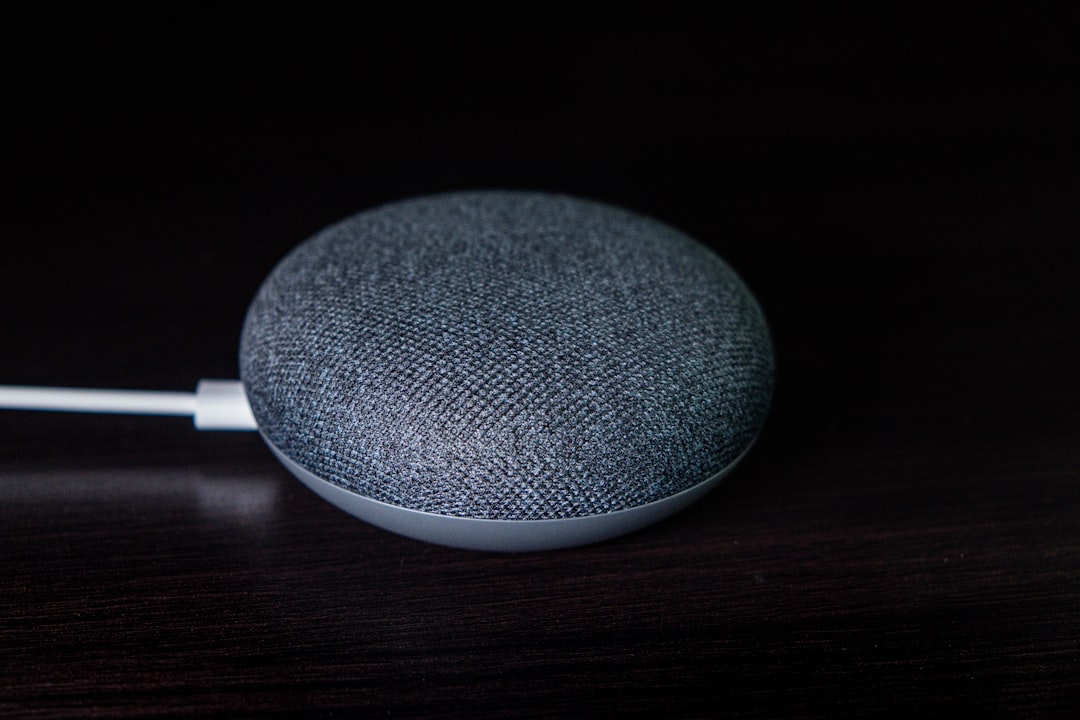
How to Factory Reset Google Home Mini and Nest Mini
Flip the device over.
Look for a small button near the power cable.
Press and hold it.
Keep holding for about 15 seconds.
You will hear a sound. The lights will change.
When it tells you it is resetting, let go.
Wait for the reset to finish.
This can take a few minutes.
How to Factory Reset Google Home (Original)
Find the microphone mute button on the back.
Press and hold it.
Hold for about 15 seconds.
The Assistant will warn you.
Keep holding until the reset starts.
Release the button.
Let it do its thing.
How to Factory Reset Nest Audio
Unplug the device.
Turn off the microphone switch.
Plug it back in.
Press and hold the top center.
Keep holding for about 10 seconds.
The lights will turn orange.
The device will reset.
How to Factory Reset Google Nest Hub (With Screen)
These have displays. They work a little differently.
Press and hold both volume buttons at the back.
Hold for about 10 seconds.
A warning will appear on the screen.
Keep holding.
The reset begins.
[pause]
Reset Using the Google Home App
Sometimes the buttons are annoying.
If the device still appears in the app, do this instead.
- Open the Google Home app.
- Tap your device.
- Tap Settings.
- Tap Device settings.
- Select Remove device.
- Choose Factory reset.
This method only works if the device partially responds.
If the app can’t find it, use the physical reset.
Setting It Up Again After Reset
Your device is now wiped clean.
It is ready for a fresh start.
Open the Google Home app.
Sign in to your Google account.
Tap the plus icon.
Choose Set up device.
Follow the steps on screen.
This includes:
- Connecting to Wi‑Fi
- Choosing a room
- Linking music services
- Training voice match
Take your time.
When done, test it with a simple command.
If Reset Didn’t Work
This is rare. But it happens.
Try these extra tips.
- Move the device closer to the router.
- Avoid plugging into smart plugs or power strips.
- Check for router firmware updates.
- Try a different Wi‑Fi band if possible.
If nothing helps, the device may be faulty.
It might be time to contact Google Support.
Keeping Google Home Happy in the Future
A few habits prevent issues.
They also save time.
- Restart the device once a month.
- Keep it away from heat.
- Use stable Wi‑Fi.
- Avoid yelling. It hears you fine.
Also, keep the app updated.
Updates fix bugs quietly.

Final Thoughts
Google Home devices are helpful. Until they are not.
When they freeze or ignore you, a reset is your best friend.
Start small. Restart first.
Use a factory reset when needed.
In most cases, you will be back to talking to your assistant in minutes.
And yes. It will answer again.
Probably. 🙂
