


Why Does My PS5 Keep Overheating? Causes & Fixes
The PlayStation 5 is an impressive gaming console that delivers stunning graphics, lightning-fast load times, and immersive gaming experiences. However, some users encounter a frustrating issue—overheating. If your PS5 keeps shutting down or displaying temperature warnings, you’re not alone. Understanding the causes of this overheating can help you fix the issue and extend the life of your console.
Contents
TL;DR
If your PS5 is overheating, it’s likely due to poor ventilation, dust buildup, or extended play sessions in hot environments. Solutions include cleaning the console, improving airflow, and updating the firmware. Most issues are preventable with regular maintenance and smart usage. Keep your PS5 cool to protect its performance and longevity.
What Causes PS5 Overheating?
Overheating in a PS5 typically stems from a few specific causes. By identifying these, you can apply the right fix or avoid the problem altogether. Below are the most common reasons why your PS5 might be getting too hot:
1. Poor Ventilation
The PS5’s cooling system relies heavily on proper airflow. Enclosing your console in a tight entertainment center or placing it near walls can block the air vents, causing heat to build up rapidly.
- Solution: Place the PS5 in an open space with at least 4 inches of clearance on all sides.
- Tip: Avoid placing the console on carpet or soft surfaces that can block the bottom vents.
2. Dust Accumulation
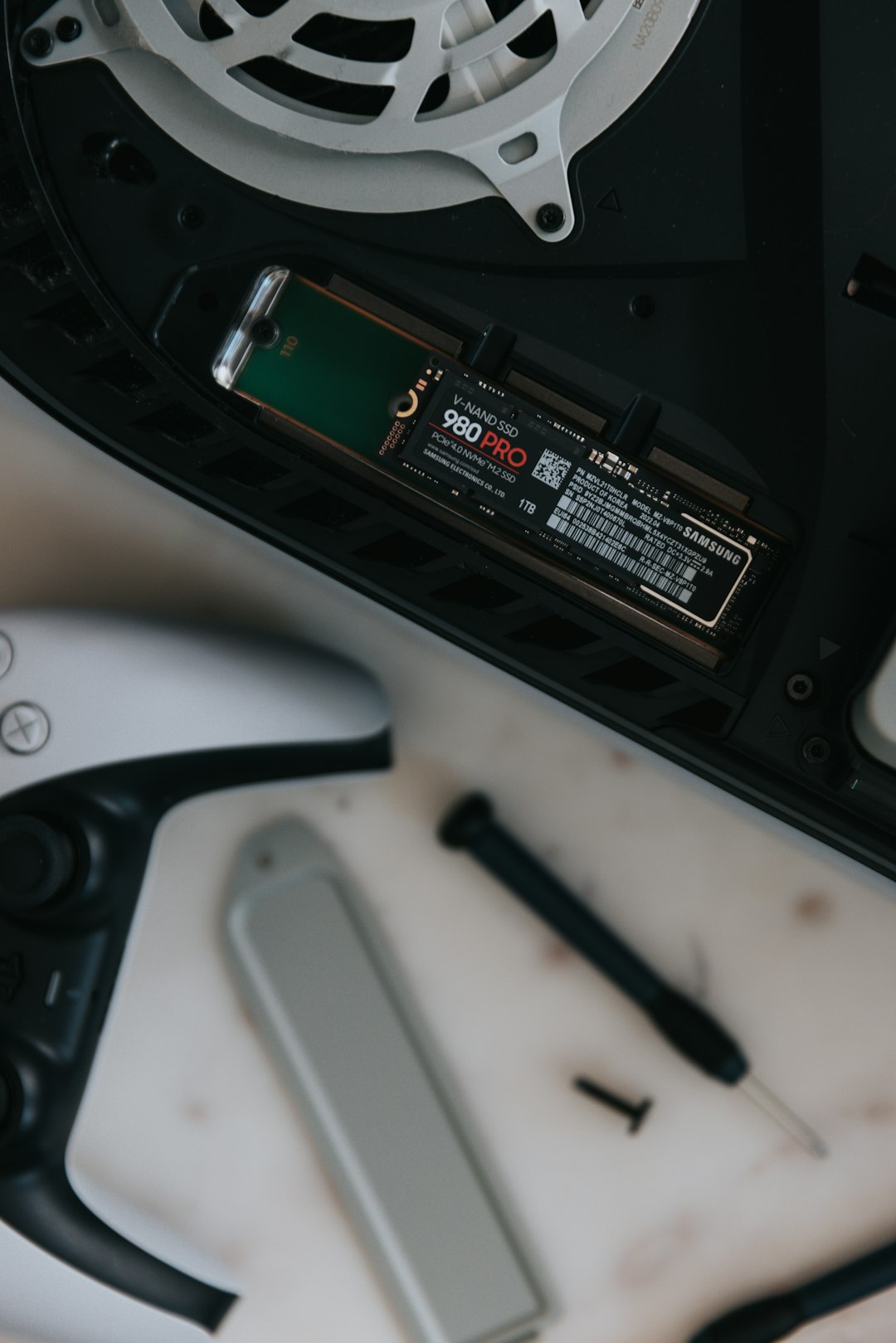
Over time, dust can accumulate inside the PS5, especially in the fans and heat sinks. This buildup hampers airflow and causes the internal components to retain heat, making it harder for the system to cool itself down.
- Solution: Power off the PS5 and use a can of compressed air to gently blow dust from all vents.
- Advanced Tip: If you’re comfortable, open the faceplates and clean the internal fan carefully using a soft brush.
3. Long Gaming Sessions
Gaming for long hours, especially on demanding titles, can strain the hardware and increase temperatures. The console keeps operating, but its internal system might not be able to keep up with the growing heat.
- Solution: Take regular breaks and turn off the console for at least 15–30 minutes every few hours.
- Helpful Tip: Use “Rest Mode” during breaks to allow the console to partially cool down while conserving energy.
4. External Temperature
A hot room can drastically affect how well your PS5 can cool itself. If your console is running in a warm or humid environment, this additional heat increases the chances of thermal issues.
- Solution: Try to play in an air-conditioned room or use a fan near the console to improve circulation.
- Bonus Tip: Avoid gaming during the hottest parts of the day if your room lacks adequate cooling.
5. Malfunctioning Thermal Paste or Cooling Components
Though less common, some PS5 units may have suboptimal thermal paste application from the factory or face faulty fan issues. These hardware-related problems will reduce the system’s ability to dissipate heat.
- Solution: If your console constantly overheats even with good airflow and regular cleaning, it might need professional service.
- Warranty Check: Contact Sony support if your PS5 is still under warranty before attempting any hardware modifications.
How to Tell If Your PS5 Is Overheating
Sometimes the signs of overheating can be subtle, especially before the system shuts itself down. Keep an eye out for the following symptoms:
- Loud fan noise: A constant, high-pitched fan sound indicates the console is struggling to cool itself.
- On-screen warning: A message along the lines of “Your PS5 is too hot. Turn off to cool down” is a clear red flag.
- Sudden shutdowns: If your PS5 turns off randomly during gameplay, overheating could be the cause.
- Sluggish performance: Frame rate drops or freezing can happen when the system overheats and throttles itself.
Preventive Maintenance Tips
Preventing your PS5 from overheating is easier than you might think. Follow these tips to keep your console running cool and efficiently:
Regular Cleaning
Dust and debris are silent killers of electronics. Clean the PS5 exterior every few weeks and perform deeper cleaning every few months.
IR Thermometer or Temperature Monitoring
Though PS5 doesn’t include internal temperature monitoring via software, using an external IR thermometer can give you an idea of heat buildup.
Cooling Accessories
Consider investing in external cooling stands or fan systems designed for PS5. These accessories can provide extra airflow and help dissipate heat more rapidly.
Keep Software Updated
Sony frequently releases firmware updates that improve system stability and may optimize how cooling and power management work. Always keep your PS5 up to date.
When to Call Support
If you’ve tried all the steps and your PS5 is still overheating, it may be time to get expert assistance. Persistent overheating can point to either a defective component or internal damage that needs inspection.
- Locate your warranty status via the Sony support website.
- Back up your data before sending the console for repair.
- Don’t attempt deep disassembly unless you’re outside of warranty and fully knowledgeable about the risks.
In many cases, Sony may replace or repair the unit free of charge if it’s under warranty and overheating is due to a product fault.
Final Thoughts
Your PS5 is a powerful machine, but like any high-performance hardware, it needs proper care to perform at its best. Overheating isn’t just annoying—it can lead to serious performance issues or hardware failure if ignored.
Thankfully, the majority of overheating issues can be resolved by improving ventilation, cleaning regularly, and using your device in ideal environmental conditions. Stay proactive, and your PlayStation 5 will remain your gateway to next-gen gaming for many years to come.
